Why Your IPTV Keeps Buffering During Live Sports (And How to Fix It)
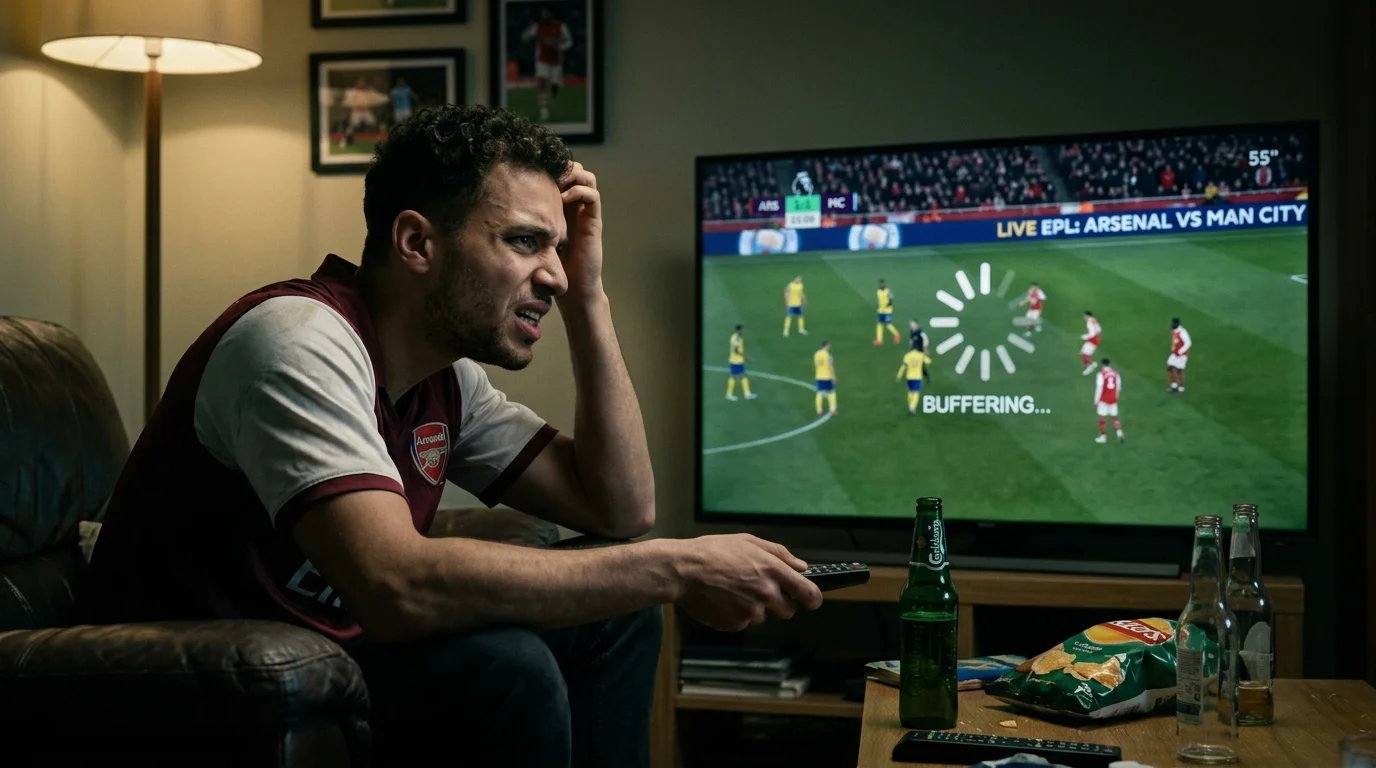
You're watching a Premier League match, your team is about to score, and then it happens. The stream freezes. The loading circle spins. By the time the picture comes back, you've already heard the goal from your neighbor's place. IPTV buffering during sports is one of the most frustrating problems any streaming fan faces, and it's more common than it should be. This page breaks down exactly why it happens and what you can do about it right now.
The Real Causes of IPTV Buffering During Live Sports
Before you start blaming your IPTV provider, it's important to understand that buffering usually comes from one of three places: your internet connection, your network setup, or the provider's server load. Most of the time, it's a combination of all three hitting you at once.
Live sports events are the hardest possible test for any IPTV stream. Champions League knockout nights, NFL playoff weekends, NBA Finals games, and El Clasico in La Liga all push servers to their absolute limits because millions of people are watching at exactly the same time. Even a solid provider can struggle when demand spikes like that. Kick-off congestion affects every route — see Champions League streaming for the match-night checklist.
Here are the most common causes of buffering during live sports streams:
- Slow or unstable internet connection: IPTV streams in HD typically need at least 15-25 Mbps. 4K streams need 50 Mbps or more. Run a speed test during the match, not just on a quiet afternoon.
- Wi-Fi interference: Wi-Fi is convenient but unreliable for live sports. Walls, microwaves, and neighboring networks all degrade your signal at exactly the wrong moment.
- Overloaded provider servers: Cheap IPTV services oversell their server capacity. When 10,000 people all tune in for the Super Bowl at kickoff, those servers buckle.
- VPN slowdown: If you're using a VPN, it's adding latency to every packet. Some VPN servers are simply too slow for HD live streaming.
- Old or underpowered device: A first-generation Fire Stick or an old Android box can struggle to decode high-bitrate streams, causing stuttering that looks like buffering but isn't.
Practical Fixes That Actually Work
The good news is that most buffering problems are fixable without switching providers. Start with the simplest solutions first and work your way down the list.
Switch to a wired connection. Plug your streaming device directly into your router with an Ethernet cable. This single change fixes buffering for more people than any other solution. Wi-Fi is great for browsing. For live sports like a Champions League final or an NFL Thursday night game, wired is the only sensible option.
Lower your stream quality. If you're stuck on Wi-Fi, drop from 4K or 1080p to 720p. You'll still get a perfectly watchable picture, and your stream will become much more stable. Most IPTV apps let you switch quality inside the player settings.
Change your DNS settings. Set your device DNS to 8.8.8.8 (Google) or 1.1.1.1 (Cloudflare). This sounds technical but takes about two minutes in your device's network settings, and it can meaningfully reduce the time it takes your device to connect to stream servers.
Try a different server or playlist. Good IPTV providers offer backup streams for major events. If the main Premier League feed is choking on a big Saturday afternoon, there's often a backup stream in your channel list. Look for labels like "backup," "SD," or alternate channel numbers.
Reboot your router before big games. It sounds basic because it is. Routers develop memory leaks and connection table bloat over time. A fresh restart before a big match clears that out and gives you a clean slate.
Use a dedicated streaming device. A current-generation Fire Stick 4K Max, NVIDIA Shield, or Apple TV handles stream decoding far better than a budget Android box. If your device is more than three years old, the hardware itself could be your problem.
One honest limitation worth knowing: even with a perfect setup, you may still experience brief buffering during the highest-traffic sports moments. Super Bowl kickoff, Champions League final whistle, and NBA Finals game sevens hit global CDN infrastructure hard. No provider is completely immune to those spikes.
Recommended Service: Best IPTV SA
If you've optimized your setup and your current provider is still dropping streams during live sports, it might simply be a provider quality issue. this recommended provider offers dedicated sports streams with multiple backup channels for major leagues including the Premier League, La Liga, Champions League, NFL, and NBA. Their server infrastructure is built with live sports traffic in mind, which makes a real difference on high-demand match nights.
Frequently Asked Questions
How much internet speed do I need for IPTV sports streaming?
For HD sports streams, aim for at least 25 Mbps download speed with a stable, consistent connection. If your speed fluctuates heavily, you'll buffer even if your average speed looks fine. A wired connection almost always delivers better consistency than Wi-Fi.
Does using a VPN make IPTV buffering worse?
It can, yes. A VPN adds an extra routing step to every packet of your stream, which increases latency and can reduce your effective speed. If you need a VPN for privacy, choose a server geographically close to you and pick a provider known for fast servers. If you don't need the VPN for access reasons, turn it off during live sports.
Why does my IPTV only buffer during big sports events?
Because your provider's servers are under maximum load at those exact moments. When tens of thousands of subscribers all tune in to watch the same NFL playoff game or Champions League match at kickoff, cheap or oversold servers get overwhelmed. This is the clearest sign that your provider needs better infrastructure. Consider switching to a service that explicitly advertises dedicated sports server capacity.
Advanced Fixes and Technical Settings for IPTV Buffering
Changing your DNS settings is one of the most underrated fixes for IPTV buffering. Your device's default DNS server is usually assigned by your internet provider, and ISP DNS servers are often slow to resolve the streaming server addresses that IPTV services use. Switching to Google DNS (8.8.8.8 primary, 8.8.4.4 secondary) or Cloudflare DNS (1.1.1.1 primary, 1.0.0.1 secondary) typically results in faster channel loading and fewer initial buffering delays. On a Fire Stick, go to Settings, My Fire TV, About, Network, and you'll find DNS settings there. On Android TV boxes, go to Network settings and look for Advanced options. The change takes two minutes and the improvement is often immediate.
Your IPTV player's buffer size settings are another technical lever most users never touch. TiviMate, IPTV Smarters, and other players allow you to adjust the buffer size in settings. A larger buffer means the player downloads more of the stream in advance before playing, which smooths over brief server hiccups. The trade-off is a slightly longer initial loading delay before the stream starts. For live sports where split-second spoilers matter, some users prefer a small buffer. For users who prioritize stability over minimal delay, setting buffer size to 30 or 60 seconds in TiviMate settings makes a noticeable difference during high-traffic events.
VPN impact on sports streaming is worth understanding properly. A VPN encrypts all your traffic and routes it through an additional server, which adds latency. On a fast VPN server geographically close to you, the added latency is minimal, typically under 20 milliseconds. On a crowded or distant VPN server, it can add 100 milliseconds or more, which creates noticeable buffering in live streams. If you're experiencing buffering and using a VPN, the first test is to disable the VPN and stream directly. If buffering disappears, the VPN server is your problem. Switch to a VPN server in a different location or upgrade to a faster VPN service.
Stream quality fallback is a feature in some IPTV apps that automatically drops from 1080p to 720p when your connection speed degrades. This sounds like a downgrade but it's actually the right behavior during a spike in network congestion. A smooth 720p stream is far better than a freezing 1080p one. In TiviMate, this can be configured in the player settings. If your app doesn't have automatic quality switching, manually changing to a lower-quality stream when you feel the buffer filling is faster than waiting for the stream to recover on its own.
Does clearing my IPTV app's cache fix buffering?
It can help, particularly if the app has been running for weeks without a restart and has accumulated significant temporary data. On Android devices, go to Settings, Apps, find your IPTV player, and tap Clear Cache. This doesn't delete your playlist or login information, only the temporary files. If your EPG has been loading slowly or channel changes have become sluggish, a cache clear often speeds things up noticeably. For Fire Stick users, this is especially useful since the device has limited storage and a full cache can slow everything down.
What is anti-freeze mode in IPTV players and should I use it?
Anti-freeze mode is a buffer management feature available in some IPTV players that preloads stream data more aggressively to prevent freezes during brief network interruptions. TiviMate and IPTV Smarters Pro both have versions of this setting. It works well for users on Wi-Fi connections where signal can dip momentarily. The downside is that it increases the delay between live action and what you see on screen, which can be several seconds. For most sports fans, a ten-second delay is irrelevant. For someone trying to watch sport in real time while also following social media, it becomes a spoiler issue. Enable it if stability matters more to you than minimal delay.
Can I reduce IPTV buffering by upgrading my router?
Yes, in some cases. Older routers with slower processors can become a bottleneck when multiple devices are streaming simultaneously. If your router is more than five years old and you're running three or four devices at once, an upgrade to a more capable router with Wi-Fi 6 support can improve throughput and reduce the packet loss that causes intermittent buffering. This is especially relevant in households where IPTV sports, smart home devices, and general internet usage compete for bandwidth during peak evening hours. A router upgrade is a bigger investment than the other fixes listed here but addresses the root cause if the router is genuinely the limitation.
Why does my stream look pixelated during fast-moving sports action?
Pixelation during fast play like a fast break in basketball, a sprint in football, or a race start in F1 is usually a bitrate issue, not a buffering issue. Low-bitrate streams lack the data density to encode rapid motion cleanly, which shows up as blocky artifacts around moving objects. The fix is to choose a higher-quality stream from your IPTV provider. Look for channels labeled FHD, 1080p, or "high" quality in your player's channel list. If the higher-quality stream buffers on your connection, the limitation is your internet speed rather than the player settings, and addressing your network setup is the correct next step.